User Guides

Create a New Reliance Request

Create a New Reliance Request​

This guide walks you through the process to create and submit a new reliance request in the SMART IRB Reliance System.

Step 1 — Start a new request from the dashboard

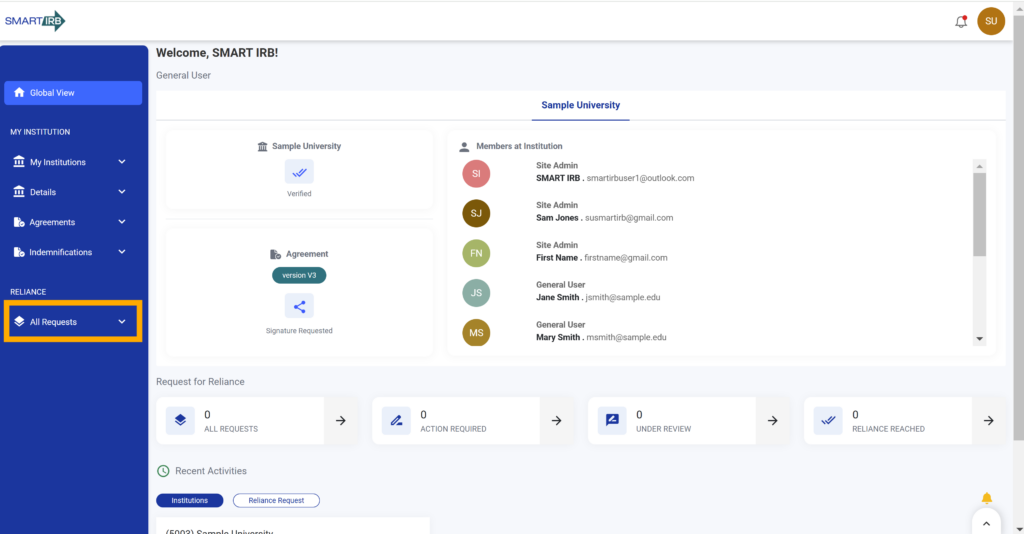
  • Click All Requests on the lefthand navigation pane to open the requests dashboard
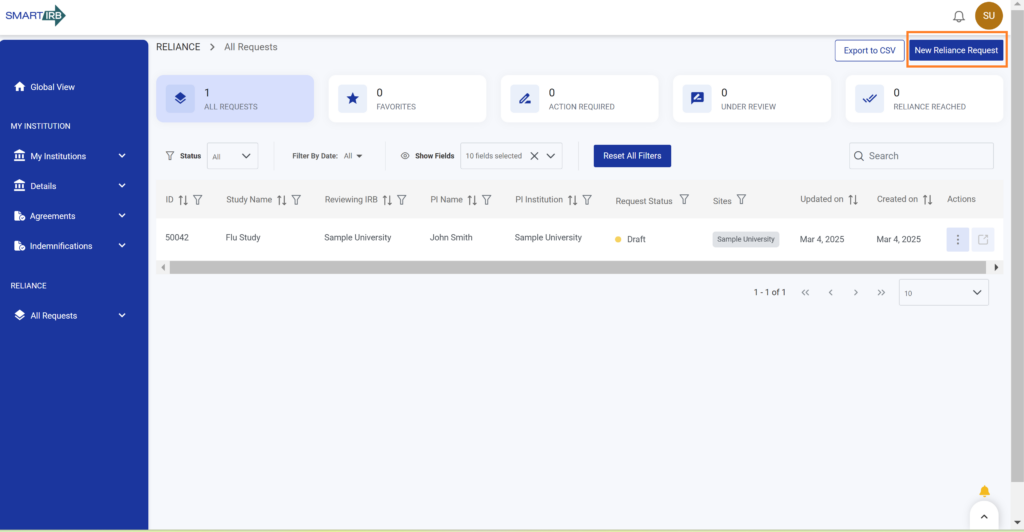
  • From the reliance dashboard select New Reliance Request

Step 2 — Enter PI Information

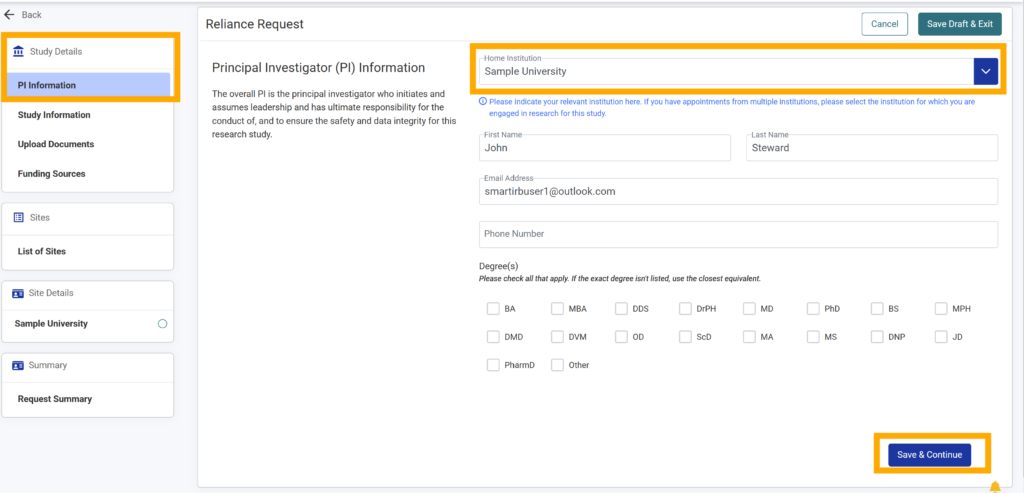
  • Choose the PI’s Home Institution from the dropdown
  • PI Name and Email (required)
  • Phone number and degrees (optional)

Step 3 — Enter Study Information

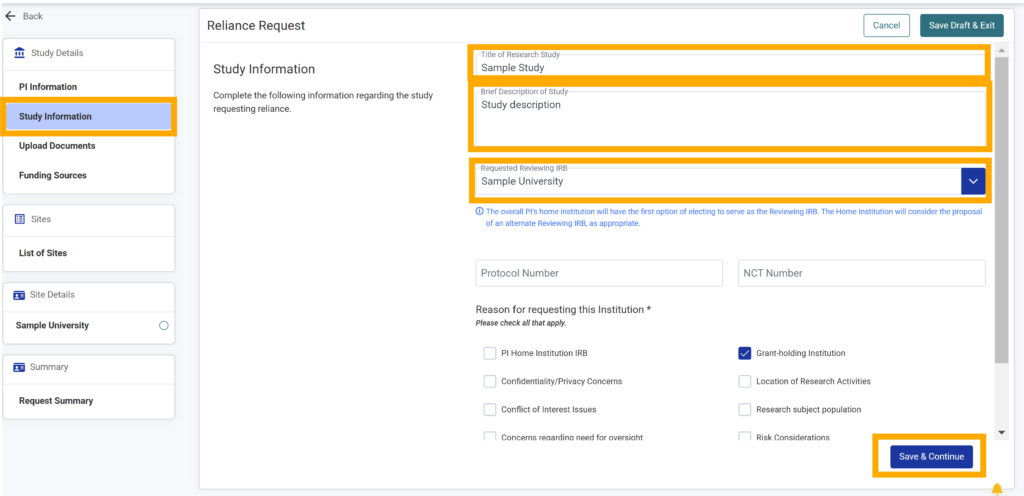
  • Study title (max length 255 characters) and brief description (max length 1000 characters)
  • Requested Reviewing IRB The “Requested Reviewing IRB” will be the Home Institution selected in the PI Information module
  • Protocol Number (optional)
  • National Clinical Trial (NCT) number (optional)
  • Use the checkboxes to select the reason(s) for requesting the Reviewing IRB (required)

If you are ready to proceed click Save & Continue.

Otherwise, select Save Draft & Exit in the top right-hand corner to save your work to complete at a later time.

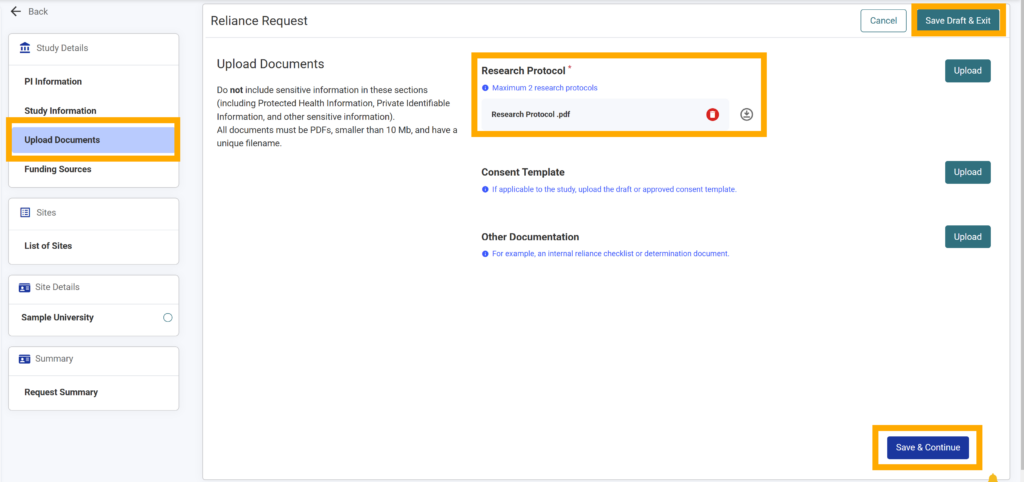
Step 4 — Upload Documents​

  • At least one research protocol is required for a reliance request. The document must be in PDF format and less than 10 MB 

  • If you have additional documentation to add to the request, use the Upload button and select your desired PDF(s)

Once you are finished click Save & Continue.

If you are not adding funding sources, click Save & Continue to move to Step 6. Otherwise, proceed to step 5.

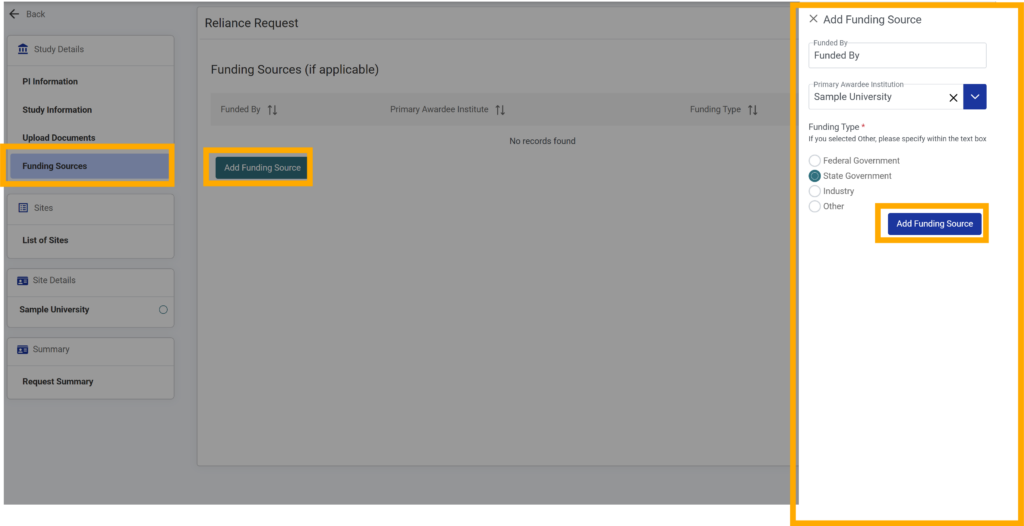
Step 5 — Add Funding sources (optional)

  • Click Add Funding Source.
  • Type the funding source in the Funded By textbox (required).
  • Open the Primary Awardee Institution dropdown menu and select the name of the Primary Awardee Institution (required).
  • Use the radio buttons to select a Funding Type (required).
  • If you selected Other as the funding type, fill out the Other Funding Type field (required).
  • After completing all the required fields click the Add Funding Source button to add this funding source to your request.
  • If you have additional funding sources to add, repeat the above steps for each.

Step 6 — Review and Submit

  • To review the request details prior to submission, click Request Summary in the navigation bar of the request’s detail page.
  • Review the details on the request summary page. To make edits, click the Edit icon on the right side of the screen within that section.
  • When you have reviewed all sections and all edits are complete, click Submit Request.
  • Click Submit in the pop-up window to proceed with submitting your reliance request.

An email notification will be sent informing the recipient that the reliance request has been submitted.